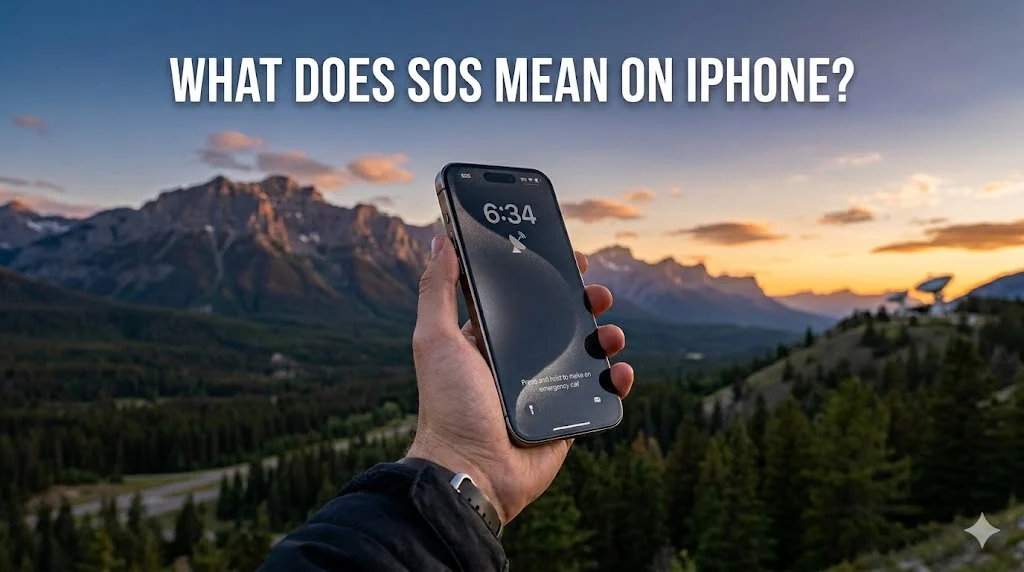
You glance at your iPhone and notice something strange. The usual five little dots showing your signal strength are gone. In their place sits a stark red label: SOS.
Before you panic and assume your expensive phone just died, take a breath. This little three-letter word isn’t bad news. In fact, it’s quite the opposite. Your iPhone just told you something important: You can still call for help even though regular service is gone.
Let me walk you through exactly what that SOS means, how Apple built two completely different emergency systems under the same name, and what you should actually do when you see it.
The Simple Truth: What SOS on iPhone Really Means
Stop overthinking it. When your iPhone says SOS or SOS Only, here’s the one-sentence explanation:
Your phone lost connection to your carrier’s network but found a different carrier’s tower that allows emergency calls only.
Think of it like a universal key. Your Verizon or AT&T plan usually locks you into specific towers. But when those towers disappear, your iPhone starts searching every available network. If it finds any working tower from any carrier, it latches on. But you don’t get full privileges. You can only dial 911 (or your local emergency number).
What you can do in SOS mode:
- Call 911
- Call local emergency services (112 in Europe, 000 in Australia)
- Receive emergency alerts (weather, AMBER)
- See your emergency medical ID if set up
What you cannot do:
- Call your mom
- Send a text
- Check Instagram
- Use Maps
- Receive any regular calls
This isn’t a defect. Apple designed SOS mode as a safety net, not a warning light.
The Two Completely Different SOS Features: Most Articles Get This Wrong
Here’s where nearly every guide confuses readers. “SOS” on your iPhone actually describes two distinct features that share the same three letters. One lives in your status bar. The other lives in your button presses.
Feature 1: SOS Only Status Indicator (The Signal Issue)
This is the one you see in the top left corner of your screen. It replaces your carrier name (like “Verizon” or “T-Mobile”) and signal dots.
Real-world trigger: You drive through a remote mountain pass. Your carrier’s towers disappear for ten miles. But a different carrier’s tower covers that stretch of highway. Your iPhone connects to that foreign tower but restricts you to emergency use only.
Duration: Until you drive back into your carrier’s coverage zone. Sometimes seconds. Sometimes hours.
Does it cost money? No. Federal law (in the US) requires all carriers to complete any 911 call regardless of whether you have a plan or account with them. Same rule applies in most countries.
Feature 2: Emergency SOS Button (The Active Call Feature)
This isn’t a status indicator. It’s an action you take. Apple built a shortcut that calls emergency services faster than opening the Phone app and dialing.
How to trigger it on modern iPhones (iPhone 8 and later):
- Press and hold the side button and either volume button simultaneously.
- Keep holding. A slider appears for “Emergency SOS” and “Medical ID.”
- Keep holding longer. A countdown starts with loud beeps (eight seconds on iPhone 14 and later).
- Release the buttons. Your iPhone automatically calls emergency services.
How it works on older iPhones (iPhone 7 and earlier):
- Press the side (or top) button rapidly five times.
- The Emergency SOS slider appears.
- Slide it to call.
What happens during the call:
Your iPhone calls the local emergency number. But it also:
- Sends a text to your emergency contacts with your live location
- Updates your location for up to one hour after the call ends
- Turns on Do Not Disturb? No. It keeps your ringer on so dispatchers can reach you.
Real example: You’re biking alone on a trail and take a bad fall. You can’t swipe or type. But you can press both buttons. The phone calls 911 for you. Your emergency contact gets a text: “Emergency SOS: John was in a severe crash at [map link].”
The Satellite SOS Feature: iPhone 14 and Later Only
This changes everything. Prior to 2022, if you had zero cellular signal from any carrier, your iPhone simply showed “No Service” and you were truly alone. The satellite SOS feature rewrote that reality.
What it does: Lets you text emergency services via satellite when you’re completely off the grid. No Wi-Fi. No cellular from any carrier. Just the sky above you.
Which iPhones have it:
- iPhone 14
- iPhone 14 Plus
- iPhone 14 Pro
- iPhone 14 Pro Max
- iPhone 15
- iPhone 15 Plus
- iPhone 15 Pro
- iPhone 15 Pro Max
- iPhone 16 series (all models)
How to trigger Satellite SOS:
- Dial 911 normally. The call will fail if you have zero signal.
- After the failed call, a “Emergency Text via Satellite” option appears.
- Tap it. Follow on-screen instructions to point your iPhone toward a satellite.
- Answer basic questions about your emergency (What’s wrong? How many people? Any medical issues?)
- Send the message. It takes 15-45 seconds per message.
Critical facts most people don’t know:
Satellite SOS is free for two years from the date you activate your iPhone 14 or later. Apple hasn’t announced pricing after that period. Some speculate $5-10 per month.
The satellite connection requires a direct line of sight to the sky. Dense trees, canyon walls, and tall buildings block it. You also can’t initiate a satellite SOS inside a vehicle or building. You have to go outside.
Satellite SOS doesn’t work above 62° latitude. That means northern Alaska, most of Greenland, and parts of northern Canada cannot use it. Apple designed the system for Globalstar’s satellite constellation, which has coverage gaps near the poles.
Real rescue example: December 2022. A man in Anchorage, Alaska crashed his snowmobile on a remote trail. No cell signal for miles. His iPhone 14 connected via satellite to emergency services. Rescuers found him within three hours.
Why Does My iPhone Say SOS Right Now: Seven Actual Causes
Let’s troubleshoot your specific situation. Stop guessing. Here are the real reasons your iPhone shows SOS this very moment.
Cause 1: Poor Cellular Coverage
The most common cause. You’re in a basement, elevator, parking garage, rural area, or building with thick concrete walls.
Test it: Walk outside to an open area. Wait 30 seconds. Does SOS change back to your carrier name? Yes? Then you solved it.
Cause 2: Your Carrier Has an Outage
Sometimes the problem isn’t you. Sometimes thousands of people lost service at the same time.
How to check: Visit Downdetector.com on a computer or ask someone else. Search for your carrier. If you see a spike in outage reports, wait it out.
Real example: July 2023. T-Mobile suffered a nationwide outage affecting over 100,000 customers. iPhones across the country showed SOS for three hours until engineers restored service.
Cause 3: SIM Card Issues
Your physical SIM card or eSIM might have deactivated or malfunctioned.
Try this: Go to Settings > Cellular. Do you see your cellular plan listed? If not, your SIM isn’t recognized. Restart your iPhone. Still nothing? Contact your carrier for a new eSIM.
Cause 4: You Just Switched Carriers
Did you port your number yesterday? Some carriers take 4-24 hours to fully activate service on new networks. During that window, your iPhone shows SOS until the activation completes.
Cause 5: iOS Software Glitch
Rare but real. An iOS update sometimes confuses the cellular radio.
The fix: Force restart your iPhone.
- Press volume up, release.
- Press volume down, release.
- Press and hold the side button until you see the Apple logo.
This doesn’t erase data. It just reboots the cellular hardware.
Cause 6: You Manually Disabled Cellular Data
Go to Settings > Cellular. Is the Cellular Data toggle off? Turn it back on. Some users accidentally turn this off and then see SOS because the phone stops searching for data networks.
Cause 7: International Roaming Issue
You traveled abroad. You didn’t buy a local plan. Your home carrier has no roaming partners in that country. Your iPhone shows SOS because it can find local towers but your plan refuses to pay for access.
Solution: Buy a local eSIM through apps like Airalo or Nomad. Then your iPhone will show full service again.
SOS vs No Service vs Searching: A Clear Comparison
Here’s a table that actually helps. Most articles list confusing jargon. This table tells you what each status means in plain English.
| Status Display | What Your iPhone Is Doing | Can You Call 911? | Can You Use Data or Text? | Should You Worry? |
|---|---|---|---|---|
| SOS | Connected to a foreign carrier for emergencies only | Yes | No | No – it’s working as designed |
| SOS Only | Same as above (older iOS versions use this text) | Yes | No | No |
| No Service | Cannot find any cellular network at all | Maybe (keeps searching) | No | Yes – this is worse than SOS |
| Searching | Actively looking for any available network | Yes (if it finds one during the search) | No | No – it’s trying to help |
| 5G / LTE / 4G / E | Connected to your carrier’s network normally | Yes | Yes | No – everything is fine |
The key insight: “No Service” is actually worse than “SOS.” No Service means your phone sees nothing. SOS means your phone sees something but restricts usage. You want SOS over No Service every single time.
How to Fix SOS Mode: And When You Shouldn’t Fix It
Let me start with something counterintuitive: Don’t fix SOS mode if you’re in an emergency.
If you just crashed your car or you’re lost on a hike, SOS mode is your lifeline. Leave it alone. Call 911 immediately.
But if you’re sitting at home and your iPhone says SOS for no reason, here’s the step-by-step fix.
Fix 1: Move to a Better Location
Walk toward a window. Go outside. Drive half a mile. Cellular signals change dramatically within short distances because buildings, hills, and trees block them.
Example: A friend’s basement apartment in Seattle showed SOS constantly. Walking up two flights of stairs brought back full 5G signal. Concrete with rebar acts like a Faraday cage.
Fix 2: Toggle Airplane Mode
Swipe down from the top right to open Control Center. Tap the airplane icon. Wait 10 seconds. Tap it again.
This forces your iPhone to re-scan for all available networks. It works about 40% of the time for temporary signal loss.
Fix 3: Restart Your iPhone
Hold side button + volume button until the power off slider appears. Or go to Settings > General > Shut Down. Wait 30 seconds. Turn it back on.
A full restart clears any stuck processes in the cellular radio firmware.
Fix 4: Check for Carrier Settings Update
Go to Settings > General > About. If an update is available, a pop-up appears within 10 seconds saying “Carrier Settings Update.” Tap Update.
Carriers push these updates to improve network compatibility. Running an outdated version sometimes triggers SOS mode unnecessarily.
Fix 5: Reset Network Settings
Last resort. This erases all saved Wi-Fi passwords and Bluetooth pairings. But it also completely resets your cellular configuration.
Path: Settings > General > Transfer or Reset iPhone > Reset > Reset Network Settings.
Your iPhone restarts. The SOS indicator should disappear if the problem was software-related.
How to Turn Off Emergency SOS Auto-Call: Important for Some Users
Here’s a feature that saves lives but also causes accidental 911 calls. The Auto Call feature automatically dials emergency services after the countdown ends.
The problem: Kids play with phones. Buttons get pressed in pockets. The phone slips out of your hand, you grab it, and you accidentally trigger the countdown. By the time you realize what happened, the phone already called 911.
Real example: A parent handed their toddler an iPhone to watch YouTube. The toddler pressed the side and volume buttons. The phone called 911. Police showed up at the door 15 minutes later. No emergency. Just a curious kid.
How to disable Auto Call (not recommended but available):
- Open Settings
- Scroll to Emergency SOS
- Turn off Call with Hold
With this setting off, the Emergency SOS slider still appears when you press the buttons. But the phone won’t automatically call. You must manually slide the emergency slider to complete the call.
Who should turn this off:
- Parents handing phones to young children
- People with motor control issues who accidentally press multiple buttons
- Anyone who previously pocket-dialed 911 multiple times
Who should leave it on:
- Solo hikers and outdoor adventurers
- Older users who may not be able to slide a button during an emergency
- Anyone with medical conditions that cause sudden incapacitation
Setting Up Emergency Contacts and Medical ID
Most iPhone users skip this setup. That’s a mistake. When Emergency SOS activates, your iPhone texts your emergency contacts automatically. But only if you told your iPhone who those people are.
Step-by-step setup (takes two minutes):
- Open the Health app (red heart on white background)
- Tap your profile picture in the top right
- Tap Medical ID
- Tap Edit in the top right
- Scroll to Emergency Contacts
- Tap the green plus sign to add someone
- Select a contact and choose their relationship to you (parent, spouse, sibling, etc.)
- Turn on Share During Emergency Call (critical toggle)
- Add any medical conditions, allergies, medications, blood type, and organ donor status
- Tap Done
What happens after you set this up:
When you trigger Emergency SOS, your iPhone sends a text to every contact you listed. That text says:
“Emergency SOS: [Your Name] made an emergency call from [approximate address] after a severe crash or car accident. They have notified emergency services. You are receiving this message because you are listed as an emergency contact.”
The text includes a map link showing your live location. The location updates every few minutes for up to one hour after the call ends.
Why this matters: If you lose consciousness after an accident, emergency contacts know exactly where you are. First responders can call your contacts for medical history you can’t provide.
Common Myths About SOS on iPhone
Let me kill these rumors permanently.
Myth 1: SOS means my phone is hacked
Truth: No hacker can change your cellular status indicator. SOS only appears when your iPhone physically connects to a cellular tower. Hackers don’t control cell towers.
Myth 2: I’ll be charged for SOS calls
Truth: Federal law in the US (Communications Act of 1934, Section 251(e)(3)) requires all carriers to complete 911 calls regardless of whether the caller has an account or paid plan. Same law applies across Canada, the UK, Australia, and the EU.
Myth 3: Satellite SOS works everywhere, even indoors
Truth: Satellite SOS requires a direct, unobstructed view of the sky. No exceptions. Trees, buildings, car roofs, and even heavy cloud cover block the signal. You must go outside and point your phone toward the satellite.
Myth 4: Emergency SOS sends my location to the wrong contacts
Truth: It only sends location to contacts you explicitly added in the Health app under Emergency Contacts. Not your whole address book. Not your recent calls list. Only those specific people.
Myth 5: Turning off cellular data turns off SOS
Truth: Cellular data and emergency calling use separate radios. You can turn off cellular data completely and still call 911 via SOS. The phone prioritizes emergency calls over everything else, including your data preferences.
Myth 6: SOS drains battery faster
Truth: Your iPhone actually reduces power when showing SOS. It stops searching aggressively and locks onto the one tower it found. Battery drain in SOS mode is lower than normal operation, not higher.
FAQs
Can I still call 911 if my iPhone says SOS?
Yes. That’s the entire point of SOS mode. Your iPhone deliberately shows SOS to tell you that emergency calls still work even though regular calls don’t. Dial 911 normally. It will connect through whatever tower your iPhone found.
How do I get rid of SOS on my iPhone?
Move to an area with better coverage. Toggle Airplane Mode on and off. Restart your iPhone. If none of those work, contact your carrier to check for outages or SIM issues. You cannot manually “turn off” SOS because it’s a real status indicator, not a setting.
Is SOS the same as no service on iPhone?
No. “No Service” means your iPhone cannot find any cellular network at all. “SOS” means it found a network but only for emergency calls. No Service is worse. SOS still allows 911 calls.
Will SOS mode automatically call my emergency contacts?
Only if you trigger the Emergency SOS button sequence (side + volume buttons). The status indicator “SOS Only” does not automatically call anyone. It simply shows that emergency calls are possible. You must initiate the call yourself.
Why does my iPhone show SOS after an iOS update?
iOS updates sometimes reset network settings or change carrier bundle files. A simple restart usually fixes it. If not, check for a carrier settings update (Settings > General > About). Apple and carriers occasionally push fixes after major iOS releases.
Can I use Wi-Fi calling when my iPhone shows SOS?
No. Wi-Fi calling requires an active cellular connection to your carrier for initial verification. SOS mode means you have no connection to your carrier at all. Wi-Fi calling won’t work until you re-establish a normal cellular signal.
Conclusion:
Stop worrying when you see those three letters. Your iPhone isn’t broken. Your carrier didn’t cancel your plan. You’re not being hacked.
Here’s what you should actually remember:
SOS means your phone put safety above everything else. It found a way to call for help even when regular service failed. That’s not a flaw. That’s Apple’s best feature working exactly as intended.
Take sixty seconds right now to open your Health app and add two emergency contacts. Set up Medical ID with your blood type and allergies. Practice the button press sequence once so you don’t panic if you need it.
Because when you really need SOS? You won’t have time to read this guide again.
Read More Related Articles:
- Abide Mean in the Bible: A Deeper Look at Its Spiritual Meaning In 2026
- YHU Mean in Texting Conversations: Everything Explained Clearly (2026)
- Meaning of “Patrón” in Spanish: From Boss to Protector In 2026

Neon Samuel is a digital content creator at TextSprout.com, dedicated to decoding modern words, slang, and expressions. His writing helps readers quickly grasp meanings and understand how terms are used in real conversations across text and social platforms.